Background Eraser Photo Editor
- 4.8
- Rating
- 50.00M
- Installs
- Free
- Price
 Analysis by App-foxy
When I need to turn a casual photo into a clean cutout, I usually want something faster than a full desktop editor but more controlled than a one-tap filter. Background Eraser Photo Editor sits in that useful middle ground. It is a free photography app from Photo Editor & Collage Maker, focused on removing backgrounds, isolating subjects, and exporting transparent-looking cutouts for later use. I found it especially practical for product images, profile graphics, simple collages, and quick social posts where the background is the part getting in the way.
The app has a 4.8 average from around 836 thousand ratings, with more than 50 million installs. That level of adoption makes it easy to understand why people keep it around: the main task is clear, the learning curve is gentle, and you can get from a phone photo to a usable cutout without opening a complicated editing suite. Still, popularity should not replace careful judgment. The real question is whether its editing workflow gives you enough control and whether you are comfortable with the choices shown while using it.
What I noticed when using the editor
The first thing I liked was the narrow focus. This is not trying to be a complete replacement for a professional photo workstation. Instead, it concentrates on the awkward part of many quick edits: separating a person, object, or other subject from its surroundings. Once that purpose is clear, the interface feels less intimidating than a large editor filled with tools I may never touch.
You May Also Like

 Blood Strike: 2.5 Anniversary
Blood Strike’s Loadouts Turn Every Drop Into a Tactical Gamble
A close look at Blood Strike’s custom loadouts: how fast access to signature weapons reshapes its battle royale rhythm, rewards preparation, and narrows the gap between fights.

 Pandora - Music & Podcasts
Pandora’s Music Is Easy to Start, but Harder to Recover
Pandora’s strength is its low-effort path from a seed to a station. Its weak spot is how much confidence it asks you to place in connection, setup, and quiet recovery.

 8 Ball Pool
 Is Built on Rivalries, Rematches, and Routine
A close look at the rivalries, rematches, shared routines, and unanswered safety questions that turn a quick pool match into a persistent mobile community.

 Samsung Music
’s Quiet Strength Is Playing What You Already Own
Its reach comes less from spectacle than from dependable access to a personal library. That simplicity is both the app’s strongest retention engine and its ceiling.

 AccuWeather: Weather Radar
AccuWeather Review: A Quick, Clear Forecast for Everyday Decisions
For everyday plans, the best forecast is the one you can understand quickly. AccuWeather makes rain timing, radar, and local conditions easy to act on, with a few trade-offs.

 Hill Climb Racing
Why Hill Climb Racing Still Turns Crashes Into One More Run
A tiny car, a bumpy hill and one more upgrade: Hill Climb Racing keeps resurfacing because its simple chaos makes every near-miss feel personal.
More From Our News Desk
View All News


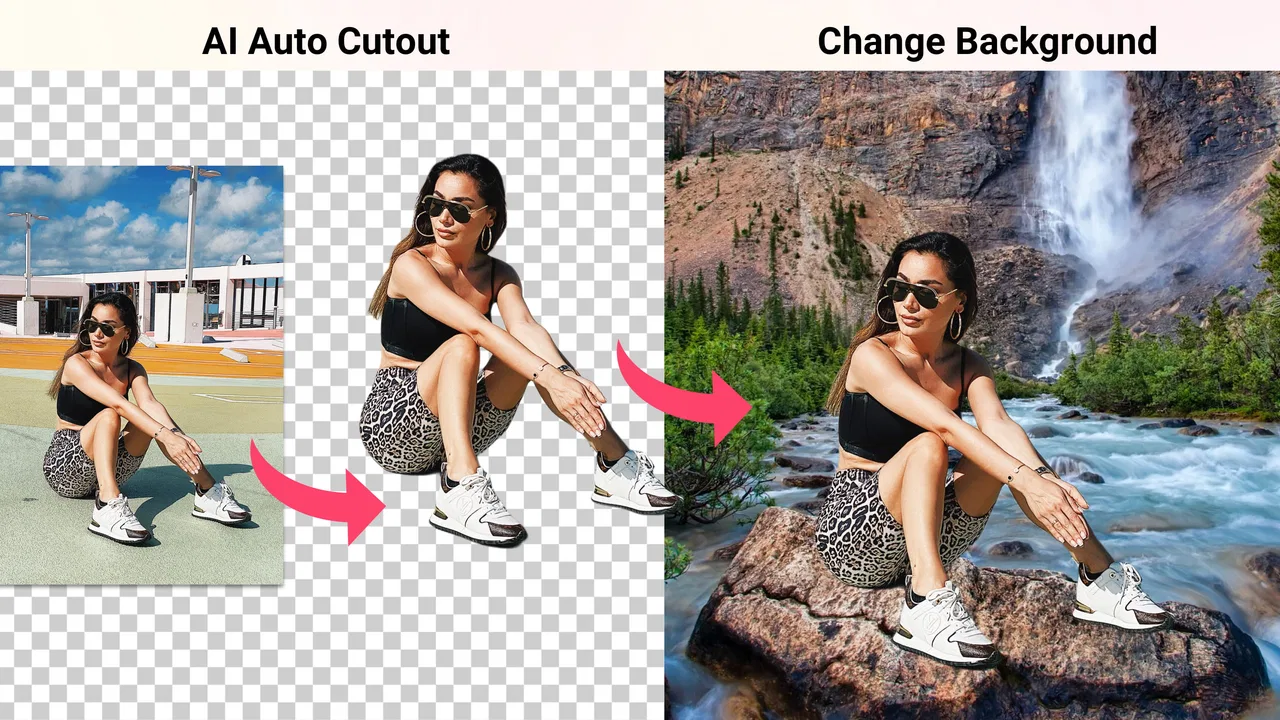
A typical workflow starts with choosing an image, marking or removing the unwanted area, and refining the outline. The result can then be used as a standalone cutout or placed into another visual composition. I would use it for a small online shop image, a birthday invitation, a thumbnail, or a profile picture where a distracting room needs to disappear. It is also handy when I want to make a PNG-style graphic without sitting at a computer.
The important detail is that automatic background removal is rarely perfect on every photograph. Hair, fur, transparent objects, thin straps, plant leaves, and shadows can confuse any mobile editor. With this app, I would treat the first result as a starting point rather than assuming it is ready to publish. Zooming in and checking the edge before saving is worth the extra minute, especially when the cutout will be placed over a plain color.
One useful habit is to choose the source photo carefully before editing. A subject with clear contrast against the background gives the removal tools more to work with. If the subject and background have similar colors, or if the image is heavily compressed, the outline may need more manual cleanup. That is not a reason to reject the app; it is a reminder that the quality of the original photo still controls much of the final result.
Where the cutout workflow is strongest
I think the app is at its best for single-subject images with a reasonably visible outline. A product on a table, a person standing against a wall, or a pet photographed in good light can usually be prepared quickly. The process is also convenient for people who do not want to learn layers, masks, selection paths, and export settings in a desktop program.
A less obvious use is preparing several versions of one subject for different layouts. I can remove the background once, save the isolated subject, and reuse it on a colored card, a collage, or a simple promotional image. That is more efficient than repeatedly editing the original photo for every design. It also helps keep the subject consistent across multiple posts.
Another practical tip is to inspect the edge against both a light and a dark background before deciding that it is clean. A pale fringe may be invisible on white but obvious on black, while a dark halo can disappear on a dark canvas and stand out on a bright one. This quick check catches mistakes that are easy to miss in the editor itself.
The app can also suit casual collage work, but I would not confuse a background eraser with a full design platform. If I need advanced typography, detailed color grading, precise layer blending, or a large multi-page project, I would move to a more comprehensive editor. Background Eraser Photo Editor is more appealing when the cutout is the central task and the rest of the design remains simple.
Everyday scenario: fixing a product photo
Imagine I have photographed a handmade mug on a kitchen counter and want to post it against a clean background. I would import the image, remove the counter and surrounding objects, then examine the handle carefully. The hole inside the handle is the kind of enclosed area that deserves a second look, because leaving a small patch behind can make the result appear unfinished.
After that, I would place the cutout over a neutral background and check whether the original lighting still makes sense. A subject photographed with a strong shadow may look pasted on when the new background has different lighting. In that situation, the app solves the separation problem, but I may still need another editor to adjust brightness, add a believable shadow, or balance the colors.
This example shows both the strength and the boundary of the app. It can save time on the tedious selection stage, but it does not automatically turn an ordinary snapshot into a polished commercial image. For a small seller or casual creator, that may be exactly enough. For a brand that needs consistent catalog photography, a more controlled workflow would be safer.
Trust, controls, and moments that deserve attention
Because this editor works with personal photos, I pay attention to more than the visible result. Images can contain faces, children, addresses, documents, private rooms, or information in the background. I would avoid treating a convenient editing tool as a place to process highly sensitive material without first checking the permissions and privacy explanations shown on the device and in the app’s current settings.
The developer is listed as Photo Editor & Collage Maker, and the app is free to install. It is rated for Everyone, runs on Android 8.0 or later, and the current version is 2.333.102. Those details make it accessible to many Android users, but they do not by themselves explain how every image is handled. I would still read the permission prompts instead of approving them automatically, particularly when importing photos or saving finished files.
My preferred approach is to grant only the access needed for the task and to review the choice afterward in Android settings. If the system presents a limited photo selection option, that is the option I would favor when editing one or two pictures rather than opening the entire library. This gives me more control over what the app can see during that session.
There is a useful distinction between editing a harmless landscape and editing a photograph of an identity document. For the first, a quick mobile workflow may be perfectly reasonable. For the second, I would choose a tool whose privacy documentation and local-processing behavior I have specifically checked. The app’s convenience does not remove the responsibility to think about the content of the image.
I also pay attention to account prompts, optional offers, and any screen that asks me to make a choice before continuing. A good habit is to slow down when a feature appears to require an upgrade or when a permission request arrives outside the obvious import or save step. I do not assume that every prompt is problematic, but I do want to understand what I am agreeing to before tapping through it.
What the free model means in practice
There is no purchase required to install the app, which makes it easy to test with a few ordinary images. In-app purchases range from $2.99 to $13.99 per item, so I would explore the basic workflow first and only consider paying if the available tools genuinely fit my routine. The presence of optional purchases is not automatically a weakness, but it does mean I would check the wording of any locked feature and the final confirmation screen carefully.
For someone who edits only occasionally, the free access may be sufficient. A student making a presentation image, a parent preparing a simple invitation, or a seller testing a few product photos may not need a recurring editing setup. On the other hand, anyone who depends on frequent batch work, highly accurate edges, or predictable professional exports should compare the upgrade path with a dedicated alternative before building a whole workflow around it.
One trade-off is speed versus inspection. The faster I accept an automatic result, the more likely I am to miss a rough edge. The more time I spend refining, the less the app feels like a quick fix. I would use the app for speed when the image is forgiving, and I would slow down only for subjects where the outline will be visible at large size.
How it compares with familiar alternatives
Compared with a general mobile photo editor, Background Eraser Photo Editor feels more direct when the main objective is isolation. A broad editor may offer stronger adjustments, but finding and learning its selection tools can take longer. This app makes more sense when I want to remove a background first and keep the rest of the editing uncomplicated.
Compared with a desktop editor, it is easier to use from the phone but less suited to delicate, high-precision work. Desktop software usually gives me finer control over masks, paths, layers, and edge treatment. If I am preparing a large print, a detailed fashion image, or a subject with complicated hair and transparent material, I would rather have that precision than depend on a quick mobile workflow.
Compared with a one-purpose online background remover, the advantage of a dedicated app is convenience during repeated phone-based edits. I do not need to move the photo to a browser every time. The disadvantage is that I need to pay closer attention to the app’s own permission prompts and visible choices, because the images are being handled inside a mobile application rather than through a single browser upload.
For social media creators, the right choice depends on where the rest of the design happens. If the final post will be assembled in another app, this editor can serve as the preparation step. If I already use a design tool with strong built-in background removal, adding another app may create unnecessary exporting and re-importing. In that case, the integrated option is simpler even if its cutout controls are not quite as focused.
Small techniques that improve the final result
I would keep the original photo untouched and work from a copy whenever possible. That makes it easy to return to the source if the edge needs another attempt or if I later decide that the original background was useful. It also prevents a rushed edit from becoming the only version available.
When a subject has a complicated outline, I would remove large, obvious background areas first and then refine the narrow sections. Trying to perfect tiny details before the main separation is complete can make the process feel slower and can hide larger mistakes. The best order is usually broad cleanup, edge inspection, then a final check at the intended display size.
I would also avoid judging a cutout only on the app’s working canvas. A subject that looks fine when small may reveal jagged edges once enlarged. Conversely, a few tiny imperfections may never matter in a small social thumbnail. The intended use should decide how much time I spend refining rather than chasing invisible perfection.
For hair and soft edges, I would use a background with a similar visual mood after removal instead of placing the subject immediately on a stark, contrasting color. This does not repair a poor selection, but it can make minor edge transitions less distracting. For a professional result, however, I would still inspect the outline closely and use a more advanced masking tool when necessary.
Who should use it and who should skip it
I would recommend this app to Android users who regularly need quick cutouts without learning a full editing program. It is a good match for casual creators, small online sellers, students, families making invitations, and anyone who wants to prepare a subject for a collage. The Everyone rating and compatibility with Android 8.0 or later also make it approachable for people using older supported phones.
I would be more cautious about recommending it as the only tool for professional product catalogs, complex portraits, detailed hair, transparent glass, or images containing confidential information. In those cases, accuracy, repeatability, and clear data-handling choices matter more than convenience. A desktop editor or a specialized workflow may be the better investment.
I would also skip it if I only need ordinary brightness, cropping, and color adjustments. A standard gallery editor may already cover those tasks with fewer steps and no reason to add another application. This app earns its place when background separation is a recurring need, not simply because it is another free photo tool.
My cautious verdict
After using it as a focused cutout editor, I see Background Eraser Photo Editor as a practical utility rather than a complete creative studio. Its strongest quality is that it addresses a specific, common problem on a phone and keeps the path to a transparent-style subject relatively approachable. The large user base and 4.8 average suggest that the basic idea works for many people, but my recommendation still depends on the kind of images you edit.
I would start with non-sensitive photos, review every permission request, keep an eye on optional purchases, and inspect the exported edge against the background where it will actually appear. Those habits make the experience more predictable and protect me from accepting a rough cutout or an unwanted choice too quickly.
My bottom line is simple: choose it for fast, everyday background removal, but do not mistake convenience for professional masking control. If your photos have clear subjects and your final designs are modest, the free app is worth trying. If you need meticulous edges, extensive design tools, or a workflow built around private images, I would compare it with a more specialized alternative before making it part of my regular process.
FAQs for Background Eraser Photo Editor
01What are the main features of the Background Eraser Photo Editor?
The Background Eraser Photo Editor offers a variety of tools to easily remove backgrounds from images. Key features include an auto-erase function that detects edges, manual editing tools for precision, a selection of background templates, and the ability to add new backgrounds. It supports high-resolution editing and offers a user-friendly interface.
02Is Background Eraser Photo Editor easy to use for beginners?
Yes, the app is designed with beginners in mind. It provides an intuitive interface with simple step-by-step guides. The auto-erase feature simplifies the process by automatically detecting and removing backgrounds, while tutorials and tips help users achieve professional results with minimal effort.
03Does the app support multiple image formats?
Absolutely. Background Eraser Photo Editor supports a wide range of image formats, including JPEG, PNG, BMP, and TIFF. This ensures compatibility with most digital devices and allows users to edit and save images in their preferred format without any hassle.
04Are there any in-app purchases or subscription fees?
The app is free to download with essential features available at no cost. However, it offers in-app purchases for advanced tools and features, such as premium backgrounds and additional editing options. Users can choose to buy these as one-time purchases or subscribe for full access.
05Is Background Eraser Photo Editor available on both Android and iOS devices?
Yes, the app is available on both Android and iOS platforms. It can be downloaded from the Google Play Store for Android users and the Apple App Store for iOS users. It ensures compatibility with most smartphones and tablets, providing a seamless editing experience across devices.
Pros
- Easy to use with a simple interface.
- Offers precise background removal tools.
- Supports high-resolution image exports.
- Includes multiple editing features beyond erasing.
- Regular updates improve functionality.
Cons
- Contains ads that can interrupt workflow.
- Limited features in the free version.
- Occasional crashes on older devices.
- Requires internet for some features.
- No batch processing for multiple images.

Background Eraser Photo Editor
Gallery